Use JPEG for many photos, PNG when lossless detail or transparency matters, and WebP when the destination accepts it. Keep an original copy.
Keep the original and compare in five steps
- Check the destination’s accepted formats and upload size limit. Keep your original in a separate folder.
- Open the image converter below and choose a PNG, JPEG or WebP file. It is processed inside your browser.
- Choose the output format. For an initial comparison, set JPEG and WebP quality to 85%. PNG quality is not adjustable.
- Leave maximum width blank to keep the dimensions, then convert. Save resized copies separately if you need them.
- Download each copy and open it in the intended app at the size you will use. Compare small text, edges, transparency and file size.
This tool saves still images and may remove metadata. It has no lossless WebP option. 85% is a comparison setting, not a quality guarantee.
Two images we actually converted
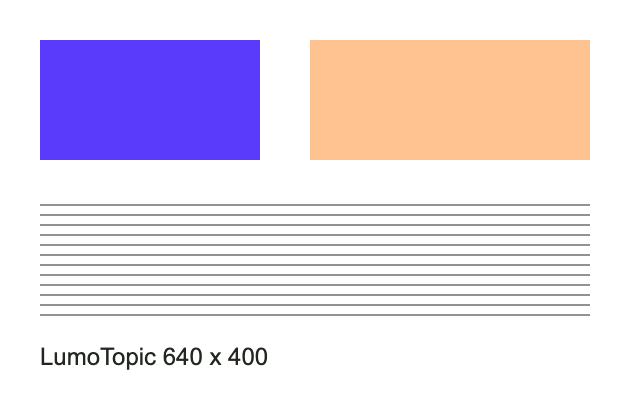
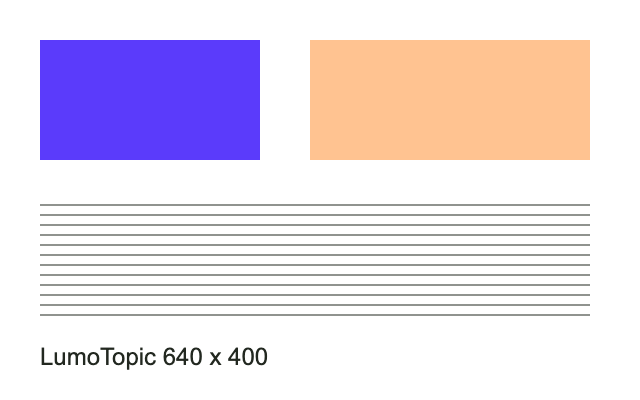
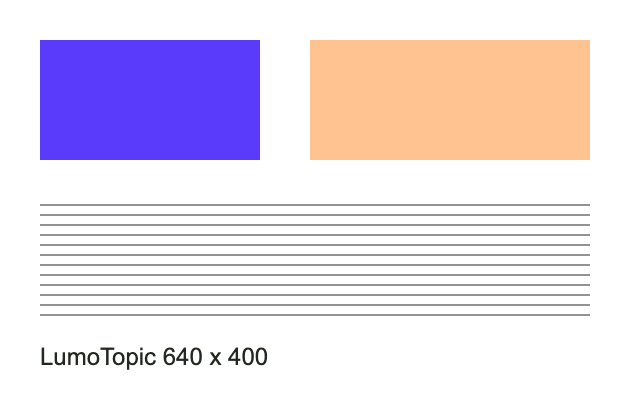
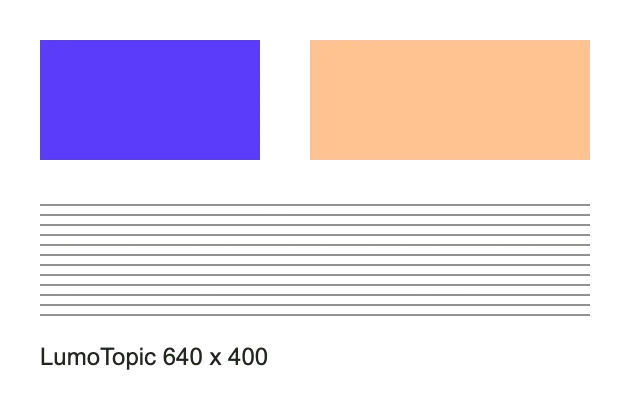
Both examples are illustrations generated by our own code: a transparent diagram with text and lines, and an opaque gradient with noise. Download the files to compare them yourself.
Transparent diagram
| Format | File size (bytes) | Transparent area |
|---|---|---|
| PNG | 12,934 | Kept |
| JPEG | 13,072 | White |
| WebP | 4,402 | Kept |
Gradient and noise
| Format | File size (bytes) |
|---|---|
| PNG | 419,030 |
| JPEG | 65,714 |
| WebP | 71,140 |


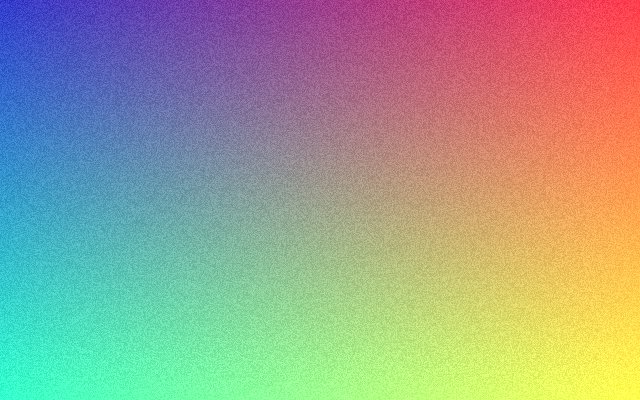

Measured on 3 November 2026 · Chromium 151.0.7922.34 · macOS
640×400 · No resizing · JPEG/WebP quality 85% · Default PNG. These two samples are not photographs or a general compression benchmark.
JPEG made our transparent diagram slightly larger and replaced transparency with white. For the gradient, JPEG was smaller than WebP at the same numeric quality setting. Different encoders need not produce equal visual quality at 85%; compare your actual files.
A practical format comparison
Scroll the table sideways to see every column.
| Format | A useful starting point | Transparency | Trade-off |
|---|---|---|---|
| JPEG (.jpg, .jpeg) | Photographs | No alpha transparency | Lossy export can soften fine text |
| PNG | Screenshots, diagrams and logos | Supported | Lossless files can be larger for photos |
| WebP | Web images when the destination accepts it | Supported | Lossy and lossless options; check app support |
01Start with where it will go
Before exporting, check the upload form or recipient’s supported formats and size limit. A tiny file that cannot be opened is not a useful result.
02Match the format to the image
JPEG is often practical for photographs, but its lossy compression can soften text and sharp edges. PNG preserves detail without lossy compression and supports transparency. WebP supports lossy and lossless options as well as transparency; compatibility with a particular app still matters. Saving an already compressed JPEG as PNG cannot recover detail previously lost.
03Keep a way back
Keep your original file in a separate folder. Make resized or compressed copies from that original rather than repeatedly recompressing a previously exported image.
Sources & further reading
Put it into practice
Image converter
Convert PNG, JPEG and WebP images, adjust quality and resize a copy.
Convert imagesBefore you convert
A short checklist for choosing an image format and checking the result.
Download checklist (.txt)